Shopify POS Card Readers: Which Hardware Fits Your Store?
Compare each Shopify POS card reader by use case, learn how to pair and connect it, and fix the reader errors that stall checkout at pop-ups or the counter.
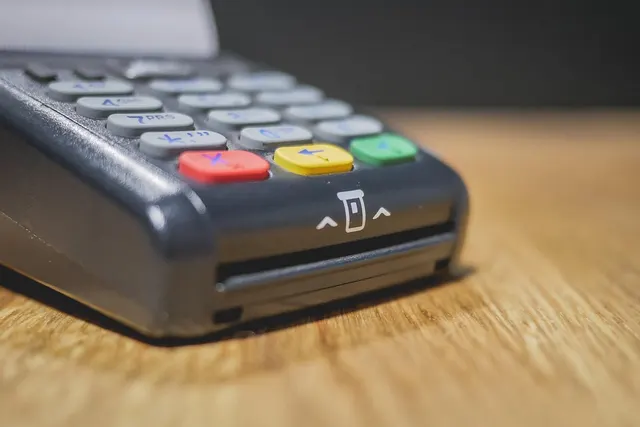
Photo: Pixabay
On this page 9 sections
- Shopify POS Card Reader Lineup at a Glance
- Matching Hardware to Your Selling Setup
- In-Person Rates on Shopify POS vs. Online Rates
- Shopify Card Reader Setup: Pairing Step by Step
- Wi-Fi, Bluetooth, and Offline Payment Limits
- Fixing Common Reader Connection Errors
- Accessories Worth Buying: Docks, Printers, and Scanners
- When Shopify's Readers Aren't the Right Fit
- Next Steps
Key takeaways
- Choose a Shopify POS card reader based on where you sell (a market table, a single counter, or a busy retail floor), not on the hardware's features.
- Shopify's readers are built to process through Shopify Payments, so confirm your store is eligible before you buy any hardware.
- Most reader problems come from pairing, Bluetooth permissions, outdated apps or firmware, and unreliable Wi-Fi, and most can be fixed in minutes.
- Treat offline payments as a backup, not a plan. Confirm Shopify's current offline limits and the risk you carry if an offline payment later declines.
Choosing a Shopify POS card reader looks simple until you're at a weekend market with a dead Bluetooth connection or a checkout line backing up behind one iPad. The right hardware depends on how and where you sell. This guide compares Shopify's own readers and terminals by use case, explains how in-person pricing differs from online pricing, walks through pairing and setup, and covers the connection problems Shopify sellers run into most often.
One note before you start: Shopify updates its hardware lineup, prices and regional availability over time. Use this guide to narrow your choices, then confirm current models, compatibility and terms in Shopify's hardware store and help center.
Shopify POS Card Reader Lineup at a Glance
Shopify's in-person hardware generally falls into three categories. Each one solves a different problem.
| Device type | How it works | Best for | Watch out for |
|---|---|---|---|
| Tap and chip reader | Small Bluetooth reader paired to a phone or iPad running the Shopify POS app | Pop-ups, markets, low-volume counters | Depends on your phone or tablet's battery and Bluetooth connection |
| Shopify POS Go | Handheld all-in-one device with the POS app and a built-in card reader | Line-busting, floor sales, events without a fixed counter | Smaller screen; one device per staff member adds up |
| Shopify POS Terminal | Countertop terminal that customers interact with, paired to your POS device | Fixed checkout counters with steady traffic | Needs a stable network and a permanent spot |
Shopify Tap and Chip Reader
The Shopify tap and chip reader is the entry point. It accepts contactless cards and mobile wallets, as well as EMV chip cards, and connects over Bluetooth to the Shopify POS app on a compatible phone or tablet. It's portable, inexpensive compared with full terminals, and easy to pack in a market bin.
Its weakness is that it depends on two devices. If the phone runs out of battery, loses Bluetooth or has an outdated app, the sale stalls.
Shopify POS Go
Shopify POS Go puts the app, card reader and barcode scanning in one handheld unit. Staff can scan a product, take payment and send a digital receipt without walking back to a counter. For stores where associates help customers on the floor, or for event booths where you want each staffer to check out independently, POS Go removes the phone-plus-reader juggling act.
Shopify POS Terminal
The Shopify POS terminal is designed for a fixed counter. The customer taps, inserts or swipes on a dedicated device facing them while staff work from the POS app on an iPad or other supported device. It suits shops with steady foot traffic where checkout speed and a clean counter setup matter more than portability.
Matching Hardware to Your Selling Setup
Start with your selling environment, then pick the device.
Pop-ups, markets and trade shows. A tap and chip reader paired to a phone is usually enough. Your main concerns are battery life and connectivity in convention halls or outdoor lots. Pack a charging bank and test the venue's Wi-Fi or your cellular signal before the doors open.
A single counter in a small shop. A tap and chip reader in a dock, or a countertop terminal, both work. If your volume is modest and you sometimes take the reader off the counter, the reader in a dock gives you flexibility. If customers line up regularly, a terminal facing the customer speeds things up.
A full retail floor. Combine a countertop terminal at the main register with one or more POS Go units for line-busting during peaks like holiday weekends, sales events and product drops. For broader guidance on register setups, see our small shop buyer's guide to retail POS systems.
A few Shopify-specific questions should shape your choice:
- Do you handle online-order returns in store? Staff need a device that can look up web orders quickly. A larger screen helps.
- Do you offer local pickup? Pickup handoffs happen at the counter, so a fixed setup tends to work better.
- Do you run multiple locations or event booths? Each location in your Shopify admin needs its own hardware and staff permissions configured.
- Are you planning a big in-person event? A large, unusual sales spike can trigger a payout review. Read our guide to warning your processor before a sales spike before you go.
In-Person Rates on Shopify POS vs. Online Rates
Shopify prices in-person and online card payments differently. Card-present transactions, where the customer taps or dips a physical card, generally carry less fraud risk than online payments, so in-person rates are typically lower than online rates. Both rates vary by Shopify plan.
A few points that affect your actual cost:
- Your plan matters. Rates differ between Shopify subscription plans, and some POS features require a paid POS subscription tier. Check the current rates for your plan in your Shopify admin.
- Manually keyed cards cost more. Typing a card number into POS is usually priced and treated more like an online transaction, and it carries more chargeback risk.
- Third-party online gateways can add fees. If you use a gateway other than Shopify Payments for online orders, Shopify may charge an additional transaction fee on those online orders. Our breakdown of Shopify transaction fees by plan explains how this works.
Shopify's readers are built to process through Shopify Payments. If your business isn't eligible, the hardware won't help you. Check our guide on Shopify Payments prohibited businesses before buying anything.
Shopify Card Reader Setup: Pairing Step by Step
A clean Shopify card reader setup takes a few minutes. Exact menu names change between app versions, so follow Shopify's current instructions alongside this checklist.
- Confirm Shopify Payments is active and your store's in-person selling is set up for the correct location.
- Update the Shopify POS app and your device's operating system.
- Charge the reader fully before first use. Many pairing failures are low-battery problems.
- Grant permissions. The POS app typically needs Bluetooth access and, on some devices, location access to find and pair the reader.
- Pair through the POS app, not your device's Bluetooth menu, unless Shopify's instructions say otherwise. Pairing in the system menu can cause the app to miss the reader.
- Install firmware updates when prompted, and don't interrupt them. Keep the reader close to the device and plugged in if possible.
- Run a small test sale and refund it so you know the full flow works, including receipts.
- Set staff permissions and PINs so only authorized staff can issue refunds or apply discounts.
Do this at least a day before a pop-up, not in the parking lot an hour before opening.
Wi-Fi, Bluetooth, and Offline Payment Limits
Two connections need to work for a sale to go through: the link between the reader and your POS device (often Bluetooth), and the link between your POS device and the internet (Wi-Fi, Ethernet or cellular).
Bluetooth tips:
- Keep the reader within a short distance of the POS device, with few obstructions.
- Pair each reader to one device at a time. A reader still paired to a coworker's phone is a common source of trouble.
- Turn off other Bluetooth accessories you don't need, especially in crowded event spaces.
Wi-Fi tips:
- Avoid guest networks with sign-in pages (captive portals). They often block POS traffic.
- At venues, ask for a dedicated network or rely on a strong cellular hotspot as a backup.
- In your shop, place the router where it covers the counter, not the back office.
Offline payments. Shopify POS may let you accept some card payments while offline, depending on your region, hardware and settings. These payments are stored and processed once you reconnect. The catch is that you don't get an approval at the time of sale. If a card later declines, you have typically already handed over the goods. Shopify sets limits and conditions on offline payments, so confirm the current rules in Shopify's help center and decide in advance whether you'll accept offline payments for higher-priced items.
Fixing Common Reader Connection Errors
Most reader problems fall into a handful of patterns. Work through this table before calling support.
| Symptom | Likely cause | What to try |
|---|---|---|
| Reader not found during pairing | Low battery, missing Bluetooth/location permission, or reader paired elsewhere | Charge the reader, check app permissions, unpair it from other devices, restart both |
| Reader connects, then drops | Distance, interference or the device going to sleep | Move closer, disable battery-saver modes, keep the app in the foreground |
| "Update required" loop | Interrupted firmware update | Plug in the reader, stay on stable Wi-Fi and let the update finish |
| Payments stuck "processing" | Weak internet connection | Switch networks or use a cellular hotspot; check for captive portals |
| Chip reads fail but tap works | Dirty or damaged chip slot, or card issue | Try another card; clean the slot carefully per manufacturer guidance |
| App can't see the terminal | Terminal and POS device on different networks | Put both on the same network and location in Shopify admin |
If a restart and re-pair don't fix it, contact Shopify support through your admin. Be cautious with unsolicited calls or texts from anyone claiming to be "Shopify support" and asking for logins or to swap your hardware. Our article on social engineering lessons for merchants covers the warning signs. Also inspect readers periodically for signs of tampering, especially after events.
Accessories Worth Buying: Docks, Printers, and Scanners
The right accessories make the hardware easier to use every day. Buy only what your workflow needs, and confirm compatibility with Shopify's current hardware list before purchasing.
- Reader docks and stands. These keep a tap and chip reader charged and in place at the counter, and give the customer a stable surface to tap or insert.
- iPad stands. These secure your POS device at the register and can swivel toward customers for tips or signatures.
- Receipt printers. Useful if your customers expect paper receipts or you need printed gift receipts. Many Shopify sellers rely on email or text receipts and skip printers entirely.
- Barcode scanners. These are worth it once your catalog grows beyond what staff can search quickly. POS Go includes scanning, so you may not need a separate scanner for handheld checkout.
- Cash drawers. Needed only if you take meaningful cash volume, and typically paired with a compatible printer.
- Label printers. These are helpful for stores that receive inventory without barcodes or that print their own price tags.
- Charging banks and spare cables. These are essential for markets and pop-ups.
When Shopify's Readers Aren't the Right Fit
Shopify's hardware works well for many stores, but not every business qualifies for Shopify Payments, and some merchants want more control over their processing terms or a different POS setup. Sellers who have dealt with Shopify Payments payouts on hold sometimes look at alternatives for that reason.
MannyPay is a U.S. merchant services provider that works with Shopify store payment integrations and offers a range of in-person hardware, including Clover, Valor, Dejavoo and PAX devices. If you're comparing options, you can browse countertop POS systems and mobile card terminals. Before switching, ask any provider exactly what syncs between your in-person sales and your Shopify inventory and orders, and what doesn't.
Next Steps
- List where you sell in person: market table, counter, floor or all three.
- Confirm Shopify Payments eligibility and your current in-person and online rates.
- Choose the device that matches your busiest selling situation, then add accessories only as needed.
- Pair, update and test everything well before your next event or sale.
- Decide your offline payment policy ahead of time.
If you'd like a second opinion on your processing costs or hardware options, you can request a free quote from MannyPay. A specialist will respond within one business day. Pricing and terms depend on your business and underwriting, so review any offer carefully before you commit.
This article is for general educational purposes and is not legal, tax or financial advice. Card network rules and state laws change; confirm current requirements for your business.