Switching POS Systems: A Step-by-Step Migration Plan
Switching POS systems? Plan your exit from your old contract and move your data and gift card balances while keeping disruption to sales to a minimum.

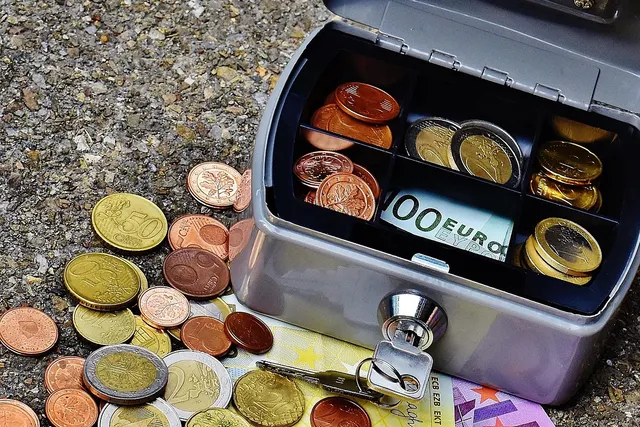
Photo: Pixabay
On this page 7 sections
- Signs It's Time to Switch POS Systems
- Read Your Contract and Early Termination Terms Before You Give Notice
- POS Data Migration: What to Export Before You Lose Access
- Check Hardware Compatibility Before Buying New
- Planning Go-Live: Timing, Parallel Runs and Backup Payments
- Training Staff and Updating Integrations
- Post-Launch Checklist for the First 30 Days
Key takeaways
- Your processing agreement, software subscription and equipment lease are usually separate contracts. Canceling one does not end the others.
- Compare an early termination fee to the months of savings you'd give up by waiting. Liquidated damages usually tip the answer toward waiting.
- Export everything while you still have admin access. Stored card numbers and payment tokens generally stay with the old processor.
- Keep your old merchant account open after go-live so refunds on old sales and late chargebacks have somewhere to land.
Switching POS systems without losing data or sales comes down to doing things in the right order. Read your contract and equipment lease before you give notice. Export every data set you need while you still have admin access. Cut over on your slowest day with a backup way to take cards. Then keep the old merchant account open until refunds and chargebacks stop arriving. Migrations usually go wrong at whichever of those four steps got skipped.
The plan below follows that order. It is written for in-person businesses such as shops, restaurants and bars, salons and spas, and grocery markets.
Signs It's Time to Switch POS Systems
Some signs are obvious, like terminals that freeze during the lunch rush or hardware the vendor no longer updates. Others creep up. Staff may track inventory in a spreadsheet because the POS can't handle sizes and colors, or a manager may re-key yesterday's sales into accounting every morning. If adding online ordering or appointment booking means paying for a second system, the POS no longer fits the business.
Cost is the other common trigger. If your POS is bundled with a processor and the rate isn't negotiable, or if you can't tell what you pay, read your merchant statement line by line before you decide. Sometimes a pricing change fixes the problem and the system can stay.
Before you commit, write down the workflows that cause the most trouble today and confirm the replacement handles each one. Our guide on choosing a POS system by workflow and total cost walks through that test. If the only gap is one feature your current provider sells as an add-on, switching is rarely worth the disruption.
Read Your Contract and Early Termination Terms Before You Give Notice
Most merchants who change POS providers are bound by several agreements, and those agreements rarely end on the same date:
- The merchant processing agreement sets your term, renewal rules and any early termination fee.
- The POS software subscription may be billed monthly or annually, sometimes by a different company than your processor.
- The equipment agreement might be an outright purchase, a free-placement deal, or a lease with a third-party leasing company.
- Add-on services such as a gateway, loyalty app or online ordering tool can carry their own billing cycles.
The lease is where people get hurt. Equipment leases are often non-cancellable, and the leasing company is usually a separate business from your processor. Closing your merchant account doesn't stop the lease payments. Find the lease and count how many payments remain, then ask whether a buyout option exists. Free-placement hardware usually has to be returned, and unreturned equipment can trigger a charge, so keep the tracking numbers.
In the processing agreement, look for four things. First, the term end date. Second, whether it auto-renews. Third, the notice window you must use to cancel without penalty. Fourth, how the early termination fee is calculated. A flat fee is simple. Other contracts use liquidated damages, a formula usually tied to your average monthly fees for each month left on the term. Read the exact wording, because that formula can cost far more than a flat fee. Contract terms are a legal matter, so if the language is unclear, have an attorney review it.
Worked Example: Pay to Leave or Wait It Out
Illustrative only. Use your own contract terms and quote.
Start with one number: your net monthly gain from switching. That's the processing cost you'd save each month, minus any increase in software fees. Treat that amount as one "month of savings" and measure the exit cost in the same unit.
Assume 14 months remain on your agreement.
- Flat early termination fee. Say the fee equals about five months of savings. If you wait out the term, you give up 14 months of savings. Leaving now puts you roughly nine months of savings ahead, so pay the fee.
- Liquidated damages. Say the contract charges your average monthly processing fees for every remaining month. Your savings are only a slice of those fees, so 14 months of fees will outweigh 14 months of savings unless the formula is capped or discounted. Wait it out, and put the cancellation window on your calendar so the contract doesn't renew.
Remaining lease payments don't change this comparison, because you owe them whether you leave or stay. They do matter if switching means buying new hardware while you're still paying for the old.
POS Data Migration: What to Export Before You Lose Access
Export everything before you cancel, because some providers cut admin access the day the account closes. Ask your current provider in writing which files you can download and how long access lasts after cancellation. CSV files are the easiest to import elsewhere.
Export these data sets:
- Products: item names, SKUs, UPCs, variants, prices, cost, tax category, vendor, category and on-hand counts.
- Customers: names, emails, phone numbers, purchase history, loyalty points and marketing consent. If you've built campaigns from this list, it is worth more than any piece of hardware. See how to use POS customer data for marketing.
- Gift cards: card numbers and outstanding balances. Those balances are money you owe customers, and they don't disappear when you change systems. If your gift card program is tied to the old provider, plan how you'll honor old cards, either by importing balances or by issuing replacements. State rules on expiration and unclaimed balances vary, so review gift card laws on expiration and unclaimed balances and confirm with your accountant.
- Sales history: daily and item-level sales going back as far as the system allows. You'll want it for year-over-year comparisons and for reconciling your Form 1099-K. Ask your accountant how long you need to keep it.
- Employees and settings: staff roles, permissions, timecards, tip records and tax rates.
Some data won't move. Stored card numbers and payment tokens generally stay with the old processor or gateway. Customers with a card on file or a recurring charge will need to give fresh payment details on the new system, and house accounts need the same attention. Contact those customers before go-live, not after the first decline.
Each industry also has data that generic checklists miss:
- Restaurants and bars: menu modifiers, kitchen printer routing, coursing rules and happy-hour pricing.
- Salons and spas: future appointments, deposits, prepaid packages, memberships and client notes such as color formulas.
- Grocery markets: PLU codes, scale-item settings, age-restricted item flags and benefit-card acceptance. If you accept benefit cards, confirm that acceptance is set up and live on the new account before cutover.
- Retail stores: size and color matrices, vendor reorder points, layaway balances and special-order deposits.
Migrate Inventory to the New POS Without Re-Keying Everything
Clean the product export before you import it. Delete archived and duplicate items and standardize category names. Every item also needs a tax category before it goes in. Run a test import on a small batch, then ring those items at the register to confirm that prices and taxes come through correctly for each variant. Do a full physical count close to go-live so the new system starts with real quantities, not whatever the old system believed.
Check Hardware Compatibility Before Buying New
List every device you own with its model number. Payment terminals are the least portable piece. They are encrypted with keys tied to a processor or platform, so a terminal from your old provider may need to be reprogrammed, or it may not work on the new setup at all. Ask before you assume it will carry over.
Peripherals are more flexible. Receipt printers, cash drawers, barcode scanners, kitchen printers and scales can often be reused if the new system supports that model and its connection type, whether USB, Ethernet, Bluetooth or Wi-Fi. Use our POS hardware checklist to spot gaps. Then compare reuse against new POS systems and terminals on total cost, including any lease you'd still be paying on the old equipment.
Planning Go-Live: Timing, Parallel Runs and Backup Payments
Choose your go-live day from your own numbers. Pull sales by day of week from the old system before you lose access and pick the lowest one. Salons should look at booked chair hours rather than revenue, since a lightly booked day is easier to cut over even if ticket totals look similar. Grocery markets should check whether certain days of the month bring predictable traffic spikes and stay clear of them. If your busy season is about to start, schedule the switch for after it ends.
Run the new system in training mode alongside the old one for a few days. Ring practice orders and test both refunds and gift card redemptions. Restaurants should send test tickets to every kitchen printer. Don't ring real sales in both systems, or your inventory will be counted twice.
On cutover day, settle your final batch on the old system before you switch (here's how to close a batch correctly). Have a backup way to take cards, such as a mobile reader or a virtual terminal for keyed sales, in case the new terminal fails during the first rush. If it does, our guide on what to check when a credit card machine isn't working walks through the checks in order.
The misunderstood rule: don't close your old merchant account on go-live day. A refund on a sale from last month has to go back through the processor that took the original payment. Chargebacks on old sales also keep arriving for months, and if the account is closed, you may lose the chance to respond. Keep the old account open, at low or no activity if your contract allows, until the dispute window on your last sales has passed. If the old processor holds a reserve, get the release terms in writing.
Here is a suggested schedule for a single location. Allow more time if you run several stores.
| Timing | Task |
|---|---|
| 6–8 weeks out | Review contracts and the lease; list your hardware |
| 4–6 weeks out | Get quotes and sign the new agreement |
| 4 weeks out | Export data and contact card-on-file customers |
| 2 weeks out | Test the import and begin staff training |
| 3–5 days out | Training-mode parallel run and physical inventory count |
| Go-live | Final batch on the old system; backup payment method ready |
Training Staff and Updating Integrations
Train by role. Cashiers need the actions they use every shift: sale, void, refund, discount, split payment, tip adjustment, gift card balance, receipt reprint, clock-in and cash drop. Managers also need override permissions and the end-of-day reports. A one-page cheat sheet taped near each station saves more time than a long training session.
Then reconnect everything that talked to the old POS. That includes accounting (if you use QuickBooks, check the QuickBooks integration mapping before the first sync), e-commerce inventory sync, online ordering, loyalty, scheduling and payroll exports. Update the "buy a gift card" and "book now" links on your website and Google Business Profile, or customers will land on a dead page.
Post-Launch Checklist for the First 30 Days
- Reconcile bank deposits against POS sales reports every day for the first two weeks.
- Spot-check sales tax on a few transactions in each tax category.
- Count fast-moving inventory at the end of week one and again at day 30.
- Track gift card redemptions, especially cards issued on the old system.
- Process refunds on old sales through the old account, and watch it for chargeback notices.
- Compare your first statement from the new provider against your quote, line by line.
- Download a final archive from the old system before access ends.
- Return free-placement equipment with tracking, and get written confirmation that each old subscription is closed.
Start today with the one task that has a deadline you can miss: find your processing agreement and note the cancellation notice window. When you're ready to price the new setup, request a free quote from MannyPay and keep your current statement handy for the comparison. A specialist will respond within one business day.
This article is for general educational purposes and is not legal, tax or financial advice. Card network rules and state laws change; confirm current requirements for your business.